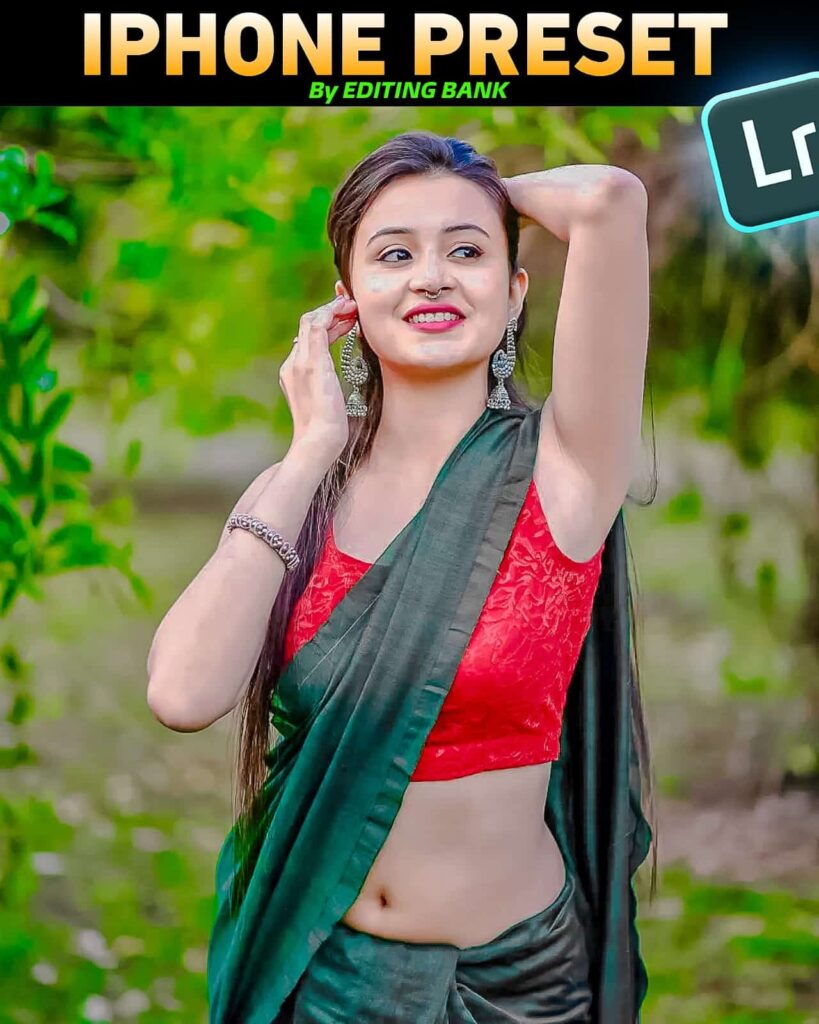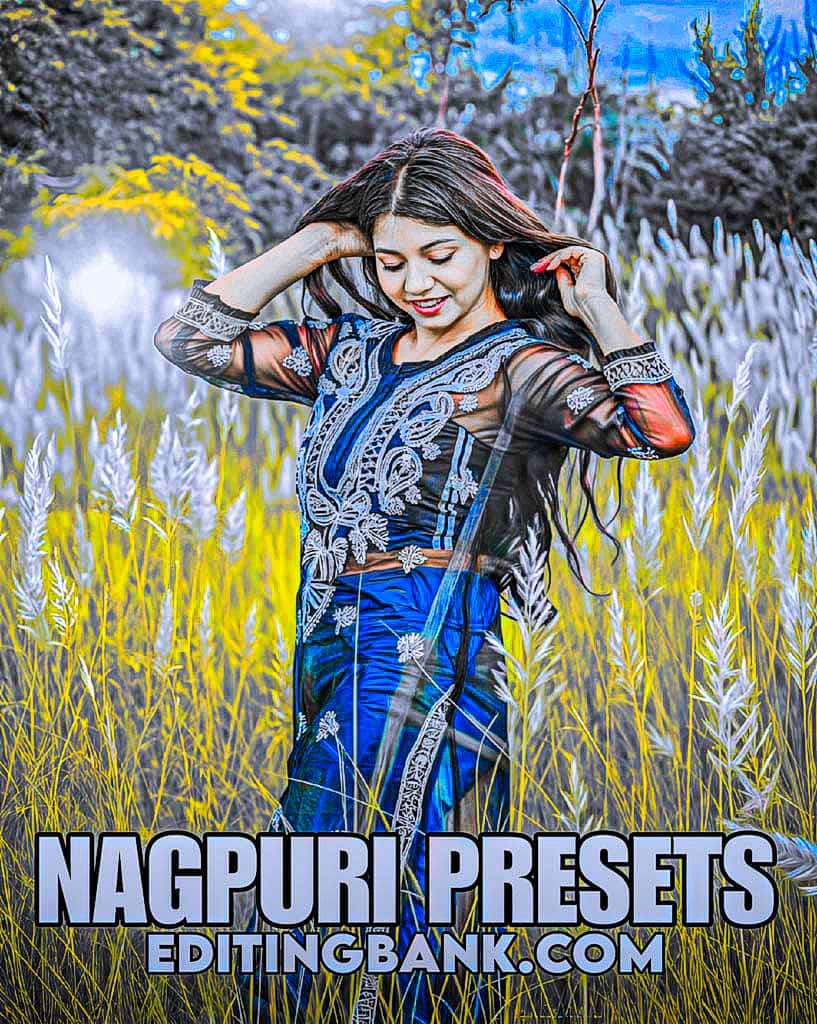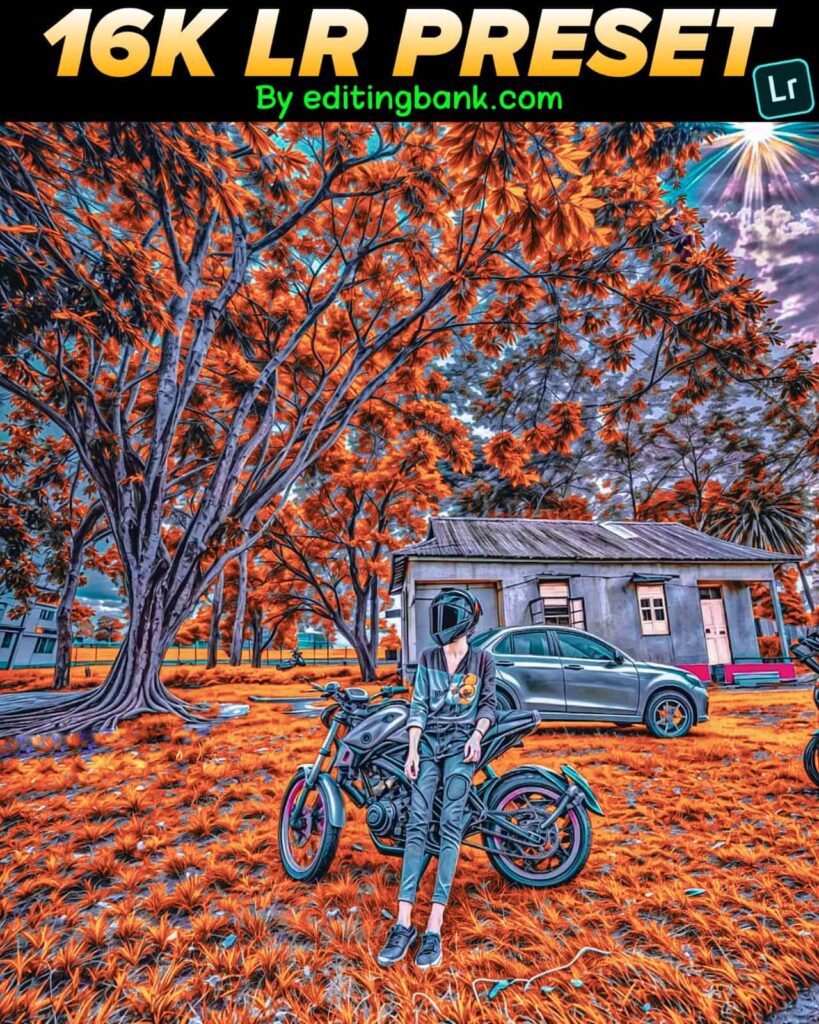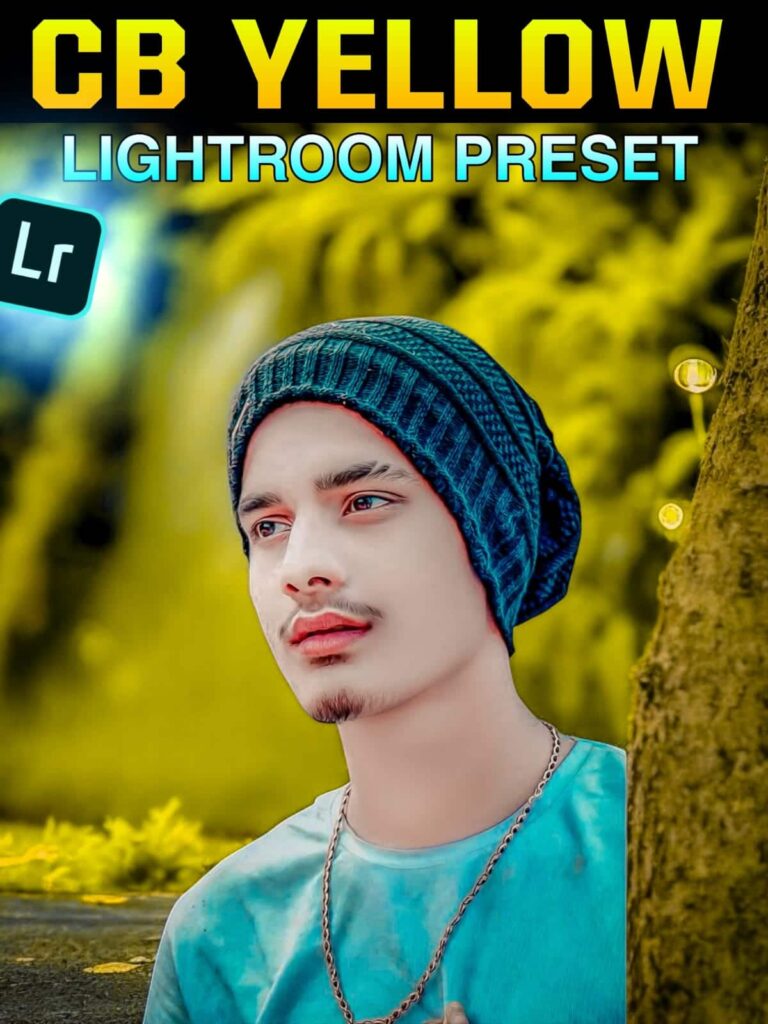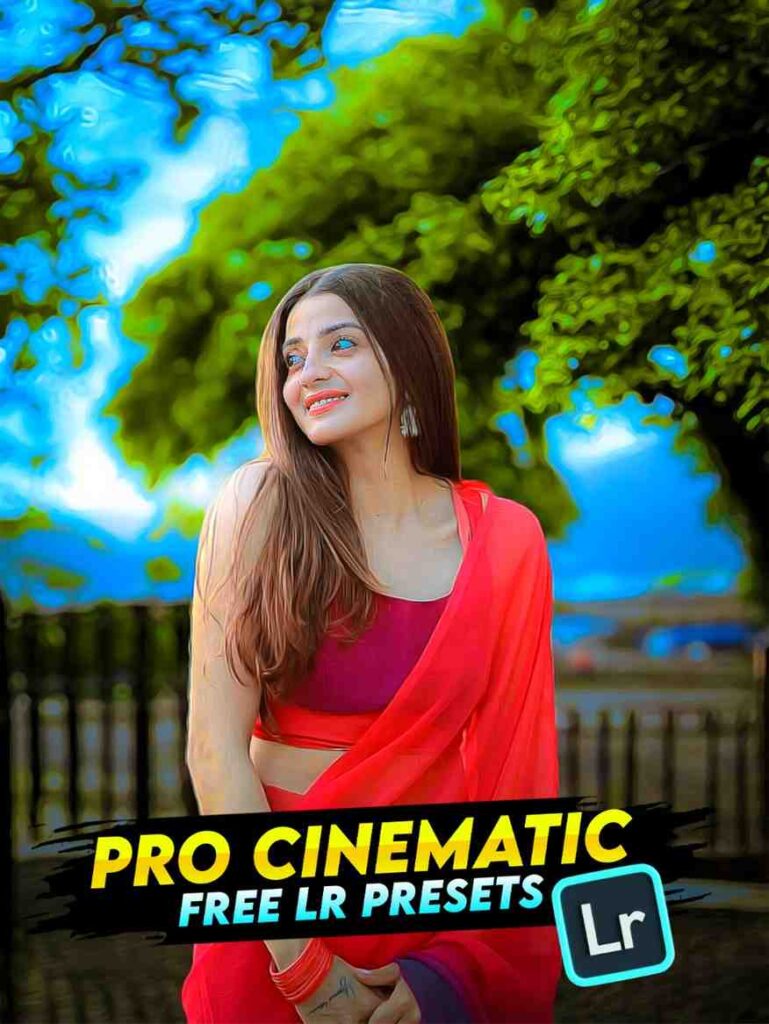
Friends, how are you? I hope you are well. Today I will talk to you about Pro Cinematic lightroom presets for mobile. What do you think, is it possible to take dramatic and magical photos like Hollywood movies with just a mobile phone? Yes, it is completely possible! And you can do it with just one click.
I have been doing photography and editing for many years. In the beginning, I also had a lot of problems. I would sit for hours just fixing the colors of one photo, adjusting the light. Even then, my photos did not have that cinematic feeling that I wanted. I felt like all that hard work was for nothing.
But luckily, I entered the world of Lightroom mobile presets one day. And then my whole photo editing scene changed! Using presets, I could turn my ordinary photos into something worthy of a movie screen in minutes. What I have learned on this journey, I want to share with you today.
What are Pro Cinematic Lightroom Presets for Mobile?
Let me say one thing first. Cinematic does not mean just black and white or dull colors. Cinematic is a feeling, a mood. When you watch a Hollywood movie, do you see the colors look a little different? The sky looks a little more dramatic, the shadows look a little deeper, and the bright parts feel a little softer. This whole look is called a cinematic look.
If you can add this mood to your ordinary photo, anyone who sees it will be amazed. This magic works for all your photos – travel photos, profile pictures, product photos, or photos with your loved one. And to do this, you do not need to be a professional photographer. You just need cinematic lightroom mobile presets.
These presets are actually a pack of ready-made settings. When you apply them with one click in the Lightroom app, your photo’s color grading, contrast, shadows, highlights – everything automatically adjusts to create a cinematic look. It saves your time, and the result is unbelievable.
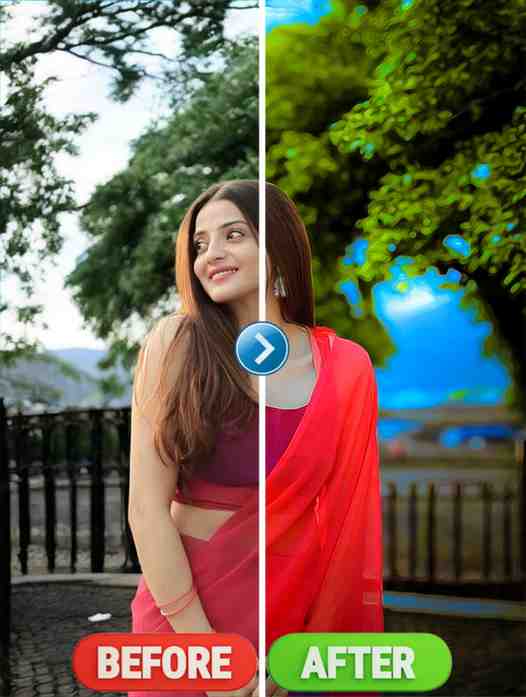
Step-by-Step Guide: How to Use Cinematic Lightroom Presets on Your Mobile
You might be wondering, how do I use these presets for lightroom mobile? Do not worry, I will explain from the very beginning in simple language. I was also very confused when I first learned. But you will see, it is actually very easy.
First, you need to install the Adobe Lightroom application on your mobile. If you are an Android user, get it from the Google Play Store. If you are an iPhone user, get it from the App Store. The app is completely free. Then open the app and create an account. You can create one with your Google ID, it will not take much time.
After opening the app, you will see a blue ‘+’ sign or ‘Add Photos’ button at the bottom. Click there and select the photo you want to make cinematic from your gallery. The photo will load in Lightroom.
Now comes the main work. The free presets for lightroom mobile file you will download is usually in .dng format. It will be saved in your gallery. Go to the Lightroom app and click on the ‘+’ sign at the bottom again. This time, go to the ‘From Files’ or ‘From Device’ option and select that downloaded .dng preset file. It will also open in Lightroom as a photo.
Now click on the three dots ‘…’ under that preset photo. You will see the ‘Create Preset’ option there. Click on it, give the preset a name, like “My Cinematic Preset” and save it. Done, your preset is ready! Now go to your original photo, go to the ‘Presets’ tab and click on the preset you just saved. You will see magically, the look of your photo has completely changed!
Where and How to Get the Best Pro Cinematic Lightroom Presets
Now let’s come to the most important question. Where can I get these cinematic lightroom presets free or premium ones? There are many websites and Instagram pages on the internet that sell presets or give them for free. But my personal experience says, many free presets have watermarks, or their quality is not right. Also, many premium presets are very expensive.
What I learned after many trials and errors is to find some reliable sources. You can directly search on Google for new cinematic lightroom presets. Many bloggers and photographers share high-quality presets for free on their websites. On YouTube too, many tutorial videos have free lightroom mobile presets links in their descriptions.
Also remember, some presets do not work only for iPhone or only for Android. A good preset is one that works equally well on both platforms as mobile lightroom presets. When downloading, check if the preset is in .dng format and if it is compatible with Lightroom mobile.
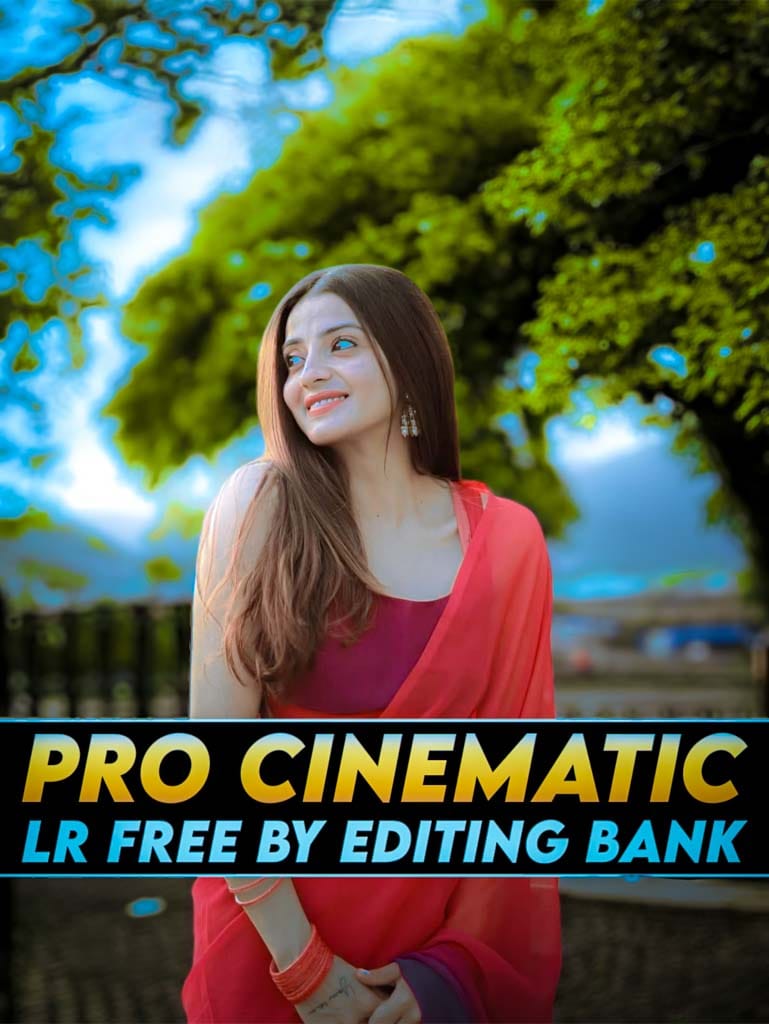
Key Features of Our Pro Cinematic Lightroom Presets for Mobile
Now let me tell you a little about the special features of the presets I am talking about using. I have tested many presets myself and I am sharing the ones I was finally happy with. These are not just a cinematic lightroom preset, but a complete professional toolkit.
First, the image quality of these presets is Full HD. This means even if you zoom in on your photo, you will not see any grain or distortion in the colors. Each preset is made by researching photos taken with high-resolution cameras, so that your mobile photos also get a professional touch.
Secondly, these lightroom presets mobile tools are very easy to use. You can work just the way I explained the steps before. There is no complexity. Third, these will match with any type of photo. Whether you edit landscape photos, portraits, or street photography, these presets have the ability to catch a different mood for each.
Fourth and very important, these presets have no watermark. You can edit the photo and share it directly on social media, no one will be able to tell you used a preset. Fifth, these are not only for mobile, but you can also use them on cinematic lightroom preset pc if you want. You can import the same preset file into Lightroom on your computer and work.
My Own Experience Making and Using Cinematic Presets
When I first tried to learn how to make cinematic presets in lightroom, my situation was very bad. I thought if I just reduced the saturation, the photo would become cinematic. But the result was a very flat and lifeless picture. It took me time to understand that for a cinematic look, you need a perfect balance of shadows and highlights, and harmony between the colors.
I then watched many video tutorials, read many blogs. By trying and making mistakes, I eventually learned to make some presets myself. When I applied those presets to my own photos, it felt like a different thing. But the problem was elsewhere. When I applied those presets to my friend’s photos, the result was completely different. Because the effect of a preset depends on the light condition, the original colors of the photo – all these things.
I found the solution to this problem by learning customization. I understood, no preset is ‘one size fits all’. Even after downloading pro cinematic lightroom presets for mobile, you have to adjust it a little to fit your photo. If you adjust the exposure a little, the temperature a little, or the shadows a little using Lightroom’s sliders, the photo becomes perfect. Learning this simple trick increased both my editing speed and quality. And this is the knowledge I am sharing with you today.
Conclusion:
So friends, today we learned how to create cinematic magic on any phone, be it free lightroom presets for iphone or Android. We learned what presets are, why they are needed, and how to use them. The most important thing I will say is that you should try to learn because these editing tools exist.
You now have the power in your hands to take your ordinary smartphone camera photos to the level of art. Find Pro Cinematic lightroom presets for mobile, practice a little, and transform your gallery into a cinematic portfolio. All the best.
Joy Ma Monosha. She is my strength. It is only because of her blessings that I have gotten this chance to share everything I know and have achieved with you. I know her grace is always with me. Thank you.
(FAQ)
Q: Are mobile Lightroom presets completely free?
A: Many high-quality presets are available for free, while presets with premium features may require a small payment.
Q: Will one preset give good results on all types of photos?
A: No, presets may need to be changed a little based on the light and what is in the photo.
Q: Will using presets ruin my original photo?
A: Never. Lightroom makes a copy of the edited photo. Your original photo stays safe.
Q: What is a .dng file actually?
A: .dng is a type of image file that saves the preset settings. It is used to turn on those settings in Lightroom.